- PSP/PS: Create a new image, background color doesn't matter at this point, but make sure it's 16 mil colors (or RGB for PS). My image size is 150x150.
- PSP/PS: Create a new layer. Using the circle selection tool (hold down the shift key in PS for a true circle) make a circle that nearly fills the image (about 140 pixels in diameter). Make sure the circle is exactly centered in the image. Fill this with any color you like. Color doesn't matter. We just want the selection. Save this selection to the alpha channel--name it OUTER.
- PSP/PS: Decrease the selection by 3 pixels. Delete the inner color of the filled circle by pressing the delete key. This should leave a 3 pixel wide ring.
- For PSP: select all, float, defloat. In PS, ctrl click on the layer. This should leave you with just the ring selected. Save to the alpha channel--name it RING.
- PSP/PS: Create a new layer. With the text tool, place a glyph at the center of the image, large enough to barely touch the ring. The actual size will depend on your ring diameter and how your font reads its points. Again, the color of the glyph doesn't matter. Save the selection to the alpha channel--name it GLYPH.
- For PSP: if your glyph element and ring element are on two different layers, "hide" all the other layers except those two and merge visible to join the two elements. Once merged, you can make the other layers visible if you like. Select all, float, defloat to get the selection around the two joined elements. Save this to the alpha channel--name it JOINED.
- PSP/PS: Delete the colored elements on the layer(s). We only needed them to get the alpha channel selections.
- For PS users, load the ring selection, then load (add to selection) the glyph element. Using pattern fill, fill the empty selection with the image below.
- Add a slight drop shadow to the glyph/ring selection. I add this to a new layer so I can play with it when I feel it needs to be changed. PS: distance 1, blur 1, opacity to your taste, but make it fairly light. PSP: offset 1, blur 1, opacity to your taste, but make it fairly light.
- PSP/PS: Create another layer above the glyph. Load alpha channel selection OUTER. I used Eye Candy's cutout filter to add a cutout on a tranparent layer here are the settings I used:
Direction: 135
Distance: 22
Blur: 40
Opacity: 48
Shadow color: Black
No fill color or solid fill.
You can achieve the same effect with PSP's cut out using similar settings, but I haven't a clue how to do so with PS. I had to resort of EC to get this.
- PSP/PS: Keep the OUTER selection. Create another layer on top of the first cutout. Apply another EC Cutout with these settings:
Direction: 315
Distance: 12
Blur: 40
Opacity: 48
Shadow color: Black
No fill color or solid fill.
- PSP/PS: Move to the background layer. It's time to make the gradient. For the foreground, select a very dark color. For the background color, select the same color family, but a medium shade.
- PSP/PS: Deselect All. Using the rectangle gradient (offset to about x: 70 y:70) or diamond gradient, lay a gradient so the lightest point is about 105x105.
- PSP/PS: Still on the background layer, add 4% uniform noise. This keeps the gradient from dithering too much when you save it as jpg or gif.
- PSP/PS: Open your alpha channel selection OUTER and invert it. Press delete to clear excess gradient from the corners of the image.
- PS: I haven't figured out what will work for PSP yet (filter factory A's spotlight filter???), but for PS users, Select/Deselect all. Then select FILTERS/RENDER/LIGHTING EFFECTS. Use the following settings.
Light type: Omni. Place the center of the omni circle right on top of the lightest point of the gradient. Make the circle about two fingers wide. (yeah, I know, cheesy measurement, but I didn't have anything else. *VBG*)
Intensity: 35
Color swatch: 220, 199, 171
Gloss: 0
Material: 69
Exposure: 0
Ambience: 8
Properties color swatch: 214, 166, 143
Texture channel: None
- PSP/PS: Your bead should be nearly finished. I then increased my canvas size by 15 pixels x & y, making sure my image stayed in the upper left corner so I could add a drop shadow to the whole thing using the OUTER alpha selection. Make a new background layer whatever color you want, or transparent. I sized my bead to 100x100 or even 80x80 works well. (Put a textured background on AFTER you resize it.)
Pattern for glyph/ring fill.

|
Finished Image
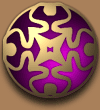 |
|


 ...Back...